Sendlore imports
Bring your saved content into one searchable library.
Choose where your saved content is coming from—browser bookmarks, X, Instagram, TikTok, YouTube, or a list of URLs—then follow the matching export guide. Review detected links, duplicates and processing options before starting your Sendlore import.
Uploaded import files are currently limited to 25 MB each. ZIP files must be extracted before upload.
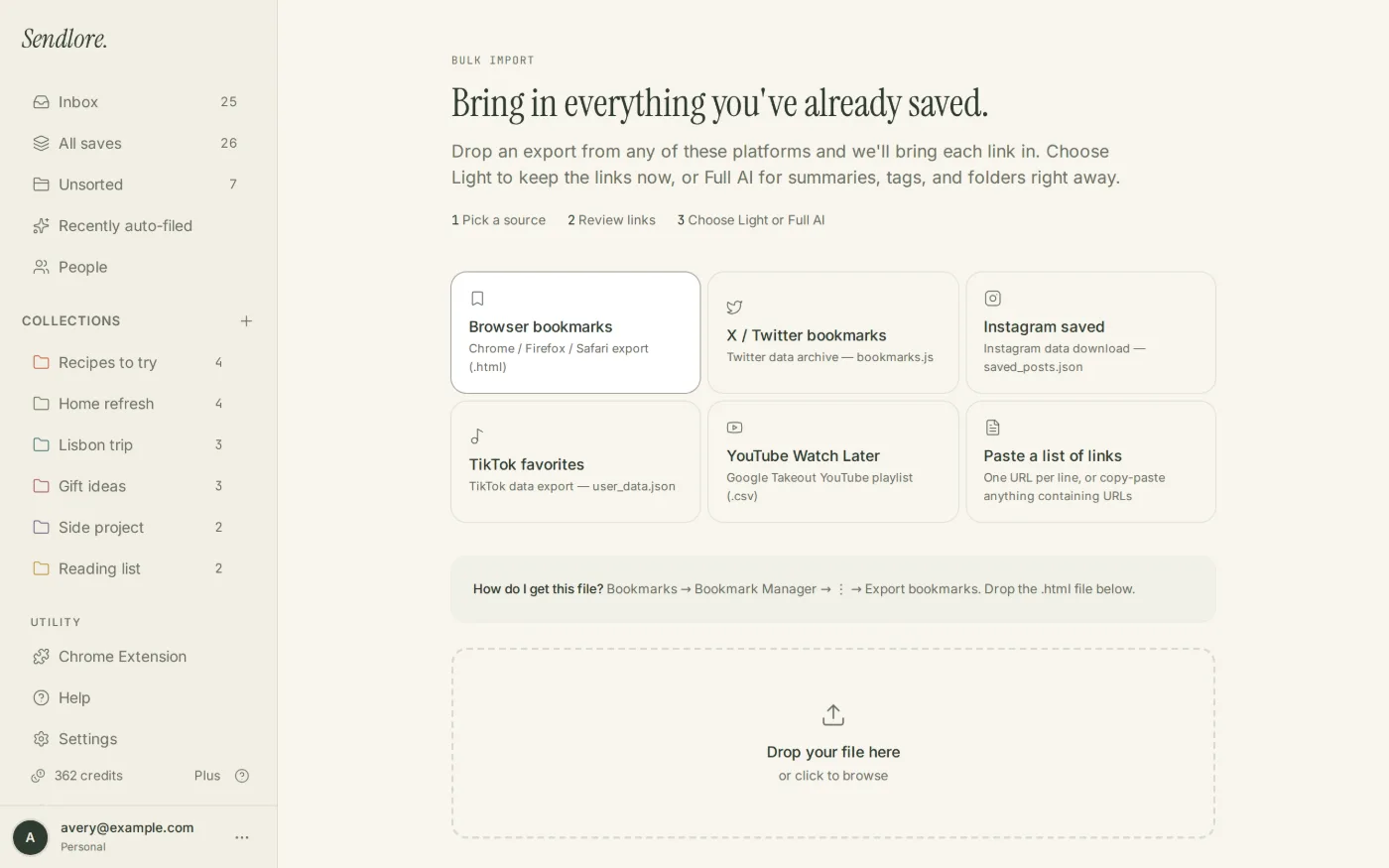
Choose your source
Import from the places your saves already live.
These are the list-import paths currently supported in Sendlore. Select a source below for the exact export file Sendlore expects.
Chrome & browser bookmarks
Upload the HTML bookmark export produced by your browser’s bookmark manager.
Open Chrome import guide →
X / Twitter
X bookmarks
Use the bookmarks file inside your downloaded X account archive.
Open X import guide →
Instagram saved posts
Use the saved-post or saved-collection JSON from your Instagram information export.
Open Instagram import guide →
TikTok
TikTok favorites
Upload TikTok’s JSON data export; Sendlore looks for the Favorite Videos data inside it.
Open TikTok import guide →
YouTube
YouTube saves
Use a Google Takeout Watch Later or playlist CSV to bring saved video links into Sendlore.
Open YouTube import guide →
Flexible
Any list of URLs
Paste plain text containing HTTP or HTTPS links when no dedicated export is needed.
See instructions ↓
The import flow
Review the library before Sendlore creates the saves.
Import is deliberately not a blind upload. Sendlore parses the file, shows what it found, checks for URLs already present in your library, and lets you choose how much processing to apply.
Export from the source
Download the supported file from your browser or platform, or prepare a plain list of URLs.
Upload and review
Choose the matching source in Sendlore Import and review the links detected from the file.
Check duplicates
Matching normalized URLs are marked when Sendlore believes the item already exists in your library.
Choose Light or Full AI
Import the links quickly or spend credits on richer processing when that option is available.
Source-specific instructions
Use the file Sendlore actually expects.
Export formats change between services. The filenames below match the current Sendlore import implementation and Help Center guidance.
.html bookmark export
Export your bookmarks as an HTML file from the browser’s bookmark manager, then choose Browser bookmarks in Sendlore Import.
- Open your browser’s bookmark manager.
- Choose its export-bookmarks option and save the HTML file.
- In Sendlore, open Import and select Browser bookmarks.
- Upload the HTML file, review the detected URLs, then choose Light or Full AI processing.
data/bookmarks.js
Download your X account archive. Sendlore’s current X import expects the bookmarks file inside the extracted archive.
- Request and download your X account archive.
- Extract the downloaded archive on your device.
- Locate
data/bookmarks.js. - Choose X / Twitter in Sendlore Import and upload that file.
saved_posts.jsonsaved_collections.jsonDownload your Instagram information in JSON format. Sendlore supports the saved-post and saved-collection JSON files used by the current export.
- Request your Instagram information download in JSON format.
- Extract the download if Instagram packages it as an archive.
- Locate
saved_posts.jsonorsaved_collections.json. - Select Instagram in Sendlore Import and upload the matching JSON file.
user_data.json
Request your TikTok data in JSON format. Sendlore reads the Favorite Videos portion of the current TikTok data export.
- Request a TikTok data download and select JSON when that format is offered.
- Extract the archive after the download is ready.
- Locate
user_data.json. - Select TikTok in Sendlore Import and upload the file; Sendlore looks for Favorite Videos inside it.
watch-later.csvplaylist.csvUse Google Takeout to export your YouTube data. The current importer accepts a Watch Later CSV or another playlist CSV.
- Open Google Takeout and include the relevant YouTube playlist data.
- Download and extract the Takeout archive.
- Locate
watch-later.csvor the CSV for the playlist you want to move. - Select YouTube in Sendlore Import and upload that CSV.
Paste a list of links
HTTP / HTTPS URLs
If you already have the links in a note, spreadsheet, document, or another export, you can skip a platform-specific parser and paste the URLs directly.
- Copy the links you want to bring into Sendlore.
- Open Import and choose the pasted-links option.
- Paste the text containing the URLs.
- Review the detected items and duplicate warnings before importing.
What happens after import
The goal is not to move clutter. It is to make old saves useful again.
Imported items join the same personal library as new Sendlore saves. From there, organization and retrieval depend on the information available for each item.
Light vs. Full AI
Moving a link and deeply reading it are separate actions.
That distinction keeps large migrations practical. You can bring a backlog into the library without pretending every item has already been summarized, transcribed, or fully extracted.
Some sources expose readable text or transcripts; others expose only metadata. The original link remains important, and Sendlore keeps reduced-fidelity saves distinguishable from richer captures.
File rules
A few limits are worth knowing before a large migration.
Questions
Importing saved content into Sendlore
What can I import into Sendlore?
The current list-import flow supports browser bookmark HTML, X/Twitter bookmarks from data/bookmarks.js, Instagram saved-post or saved-collection JSON, TikTok user_data.json with Favorite Videos, YouTube Watch Later or playlist CSV files, and pasted HTTP/HTTPS URLs.
Can I upload a ZIP file directly?
No. ZIP files are not currently supported by the live Import UI. Extract the archive first and upload the supported file inside it.
Does importing consume credits?
Light import keeps links without using credits for full processing. Full AI attempts richer processing and can use one or more credits per item depending on the source. If Full AI exceeds the available balance, later items can fall back to Light saves.
Will Sendlore detect bookmarks I already imported?
The Import screen checks for matching normalized URLs and marks items it believes already exist. You can skip them or deliberately import another copy.
Will every imported item have a summary or transcript?
No. Extraction varies by source. A URL may remain a lighter or metadata-only save when Sendlore cannot retrieve enough underlying content.
Can I reorganize imported saves later?
Yes. Imported items enter the normal Sendlore library, where you can change folders, types, tags, and other organization choices.
Can I search imported bookmarks by meaning?
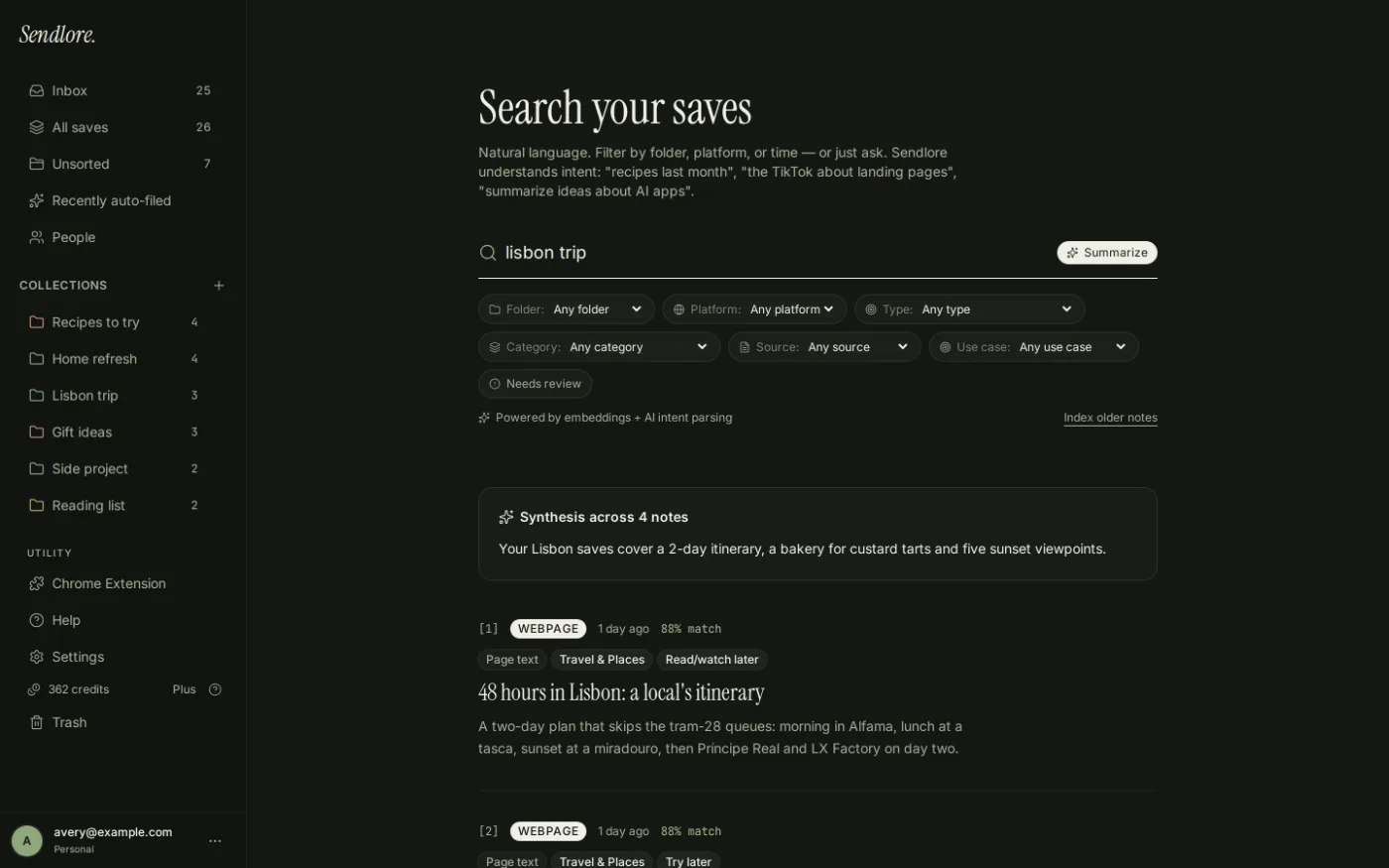
Yes when enough searchable information exists on the saved items. Sendlore’s search combines exact/full-text and semantic signals across stored library information rather than relying only on the original bookmark title.
Can I ask questions across imported research?
Yes once relevant saved evidence exists in the library. Ask retrieves matching saves, generates from that evidence, and returns references back to supporting items.
Bring the backlog
Your old saves do not need to stay trapped in old apps and exports.
Move the source links into Sendlore, review what came across, process the material worth keeping, and make the library searchable alongside everything you save next.