
Instagram saved-post import
Import Instagram saved posts into Sendlore.
Export your Instagram information in JSON, locate the saved-post or saved-collection file, upload it to Sendlore, and review the detected links before importing. Useful Instagram references can then live beside articles, videos, notes, and other research instead of staying buried inside Saved.
Request JSON from Meta’s export flow. Sendlore currently supports saved_posts.json and saved_collections.json for this migration.
saved_posts.json or saved_collections.json.Step 1
Export your Instagram information in JSON.
Meta now centralizes information controls in Accounts Center. Labels can vary slightly between app, web, and account configurations, so use the export/download controls under Your information and permissions and make sure the export format is JSON.
Open Accounts Center
From Instagram settings, open Accounts Center and choose the Instagram profile that contains the saved posts.
Open information controls
Go to Your information and permissions, then use Meta’s export/download-your-information flow.
Select the Instagram account and data
Choose the relevant Instagram profile and the categories needed for your saved-content export rather than exporting unrelated account data if Meta lets you narrow it.
Choose JSON
When Meta asks for a format, choose JSON. Complete the export request and download the archive once Meta says it is ready.
Meta describes Accounts Center as the place for managing settings across Instagram and other connected Meta accounts. Its information tools allow exporting account information to a device or other destination. About Accounts Center
Step 2
Extract the archive and find the saved-content JSON.
The Meta download can contain far more than Sendlore needs. Extract it on your device and select only the supported saved-content file for this import.
saved_posts.jsonThis is one of the current filenames supported by Sendlore for Instagram saved-post exports.saved_collections.jsonIf your export represents saved content through collections, Sendlore also supports this current JSON filename.saved_posts.json
or
saved_collections.json
Export structures can change on Meta’s side. These filenames reflect the current Sendlore importer and Help Center guidance.
Step 3
Upload the JSON and review the detected Instagram links.
Sendlore parses the export before creating the saves so the migration remains reviewable.
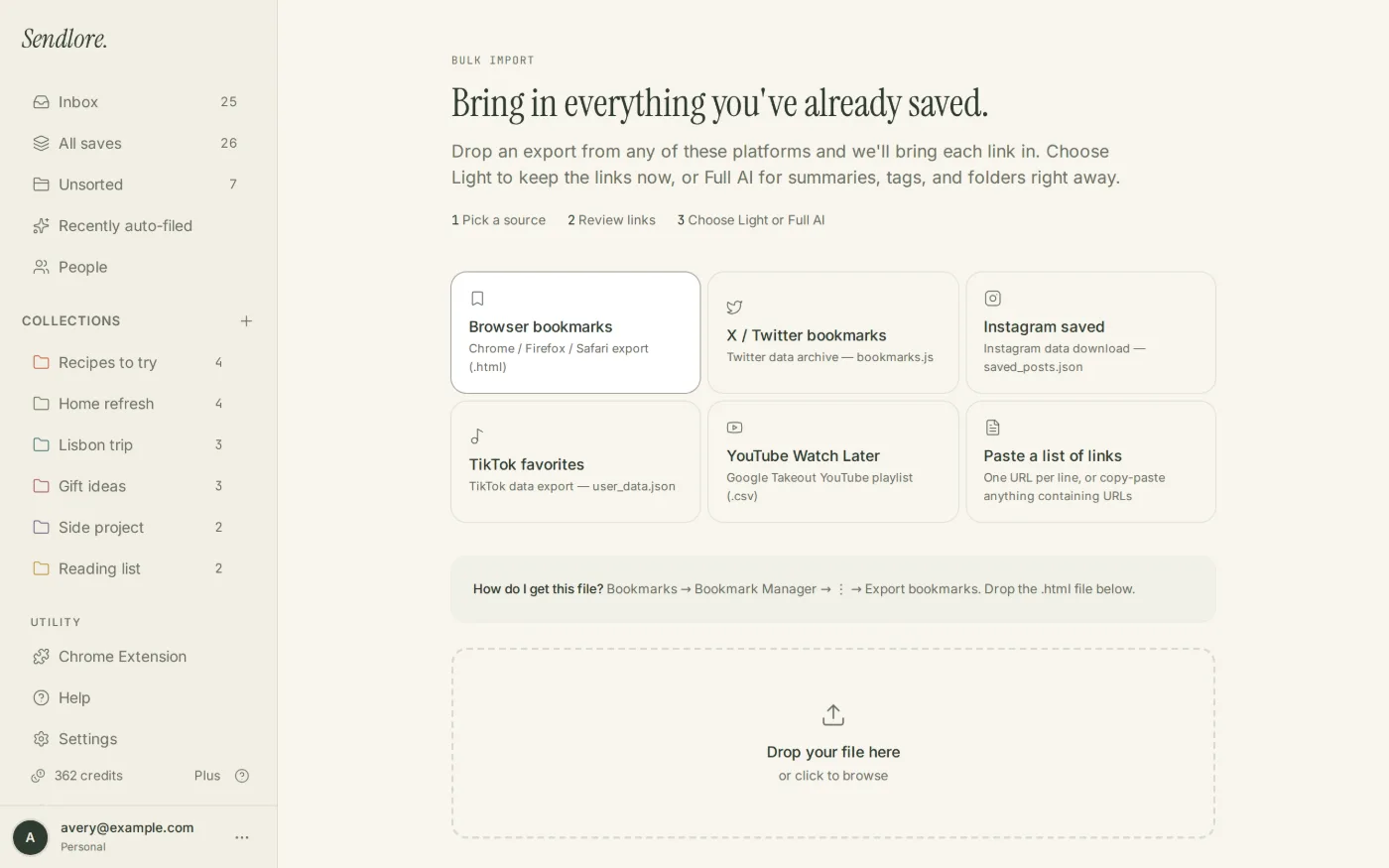
Choose Instagram
Open Sendlore Import and select the Instagram saved-post source.
Upload the JSON
Select saved_posts.json or saved_collections.json from the extracted Meta export.
Review detected items
Check the links Sendlore parsed and inspect duplicate warnings before proceeding.
Choose processing depth
Use Light import for the backlog or Full AI when richer processing is worth the available credits.
Light import vs. Full AI
Preserve the saved links first. Enrich the ones that still matter.
Instagram collections can grow into large visual backlogs. Sendlore separates moving those references into your library from attempting deeper extraction on every destination immediately.
Instagram may limit what can be read outside a logged-in session. A Sendlore save can therefore remain partial or metadata-only. The original Instagram URL stays important for reopening the source.
After the import
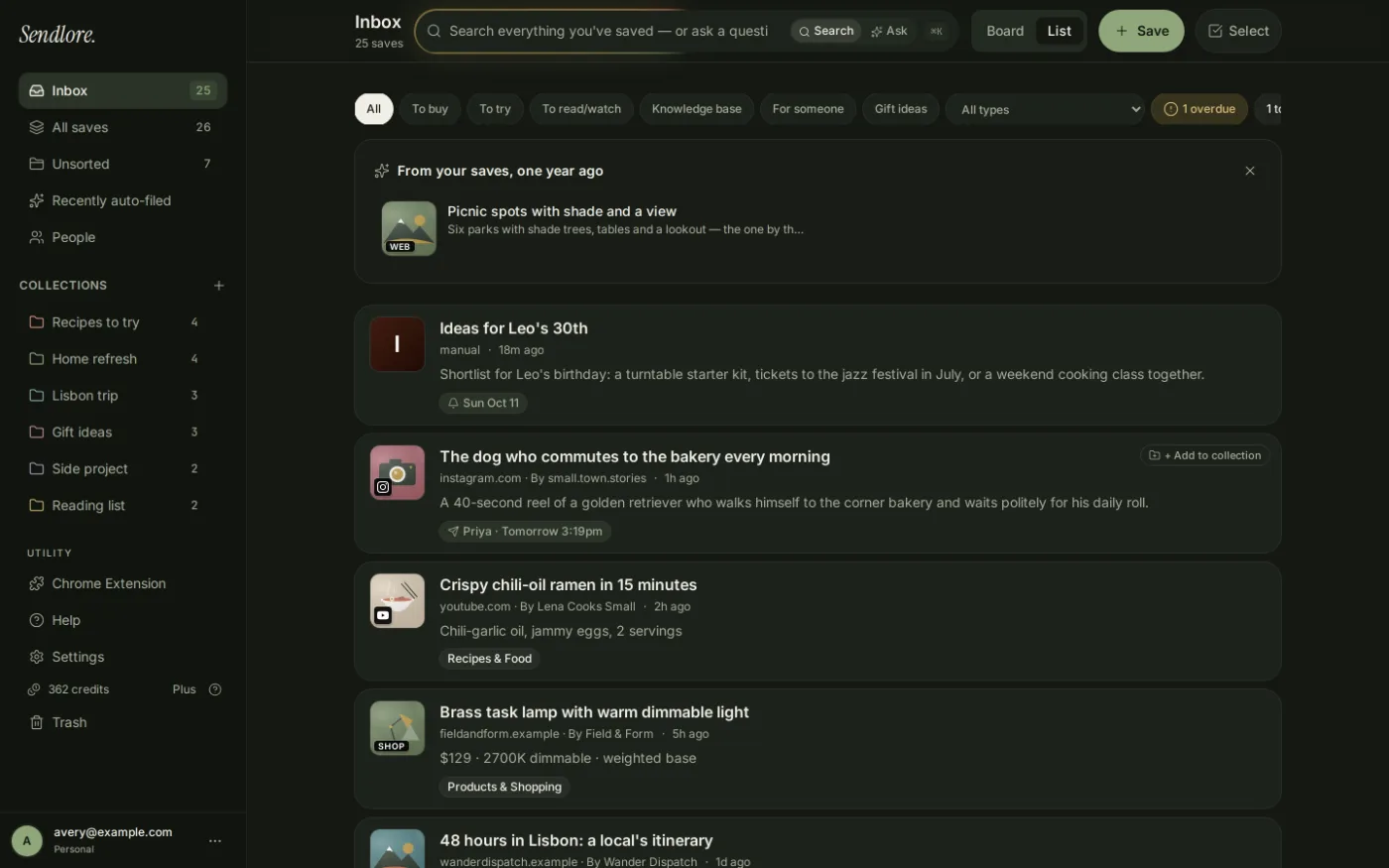
Use saved Instagram posts outside the Instagram Saved screen.
The migration is most useful when an Instagram reference connects to research happening somewhere else — design inspiration, product ideas, creators, recipes, travel, competitors, or examples for a future project.
Privacy and account-data scope
Meta exports can contain more personal data than this migration requires.
saved_posts.json or saved_collections.json, not your entire Meta account archive.Questions
Import Instagram saved posts FAQ
What Instagram files does Sendlore accept?
The current Sendlore importer supports saved_posts.json and saved_collections.json from an Instagram information export.
Should I choose JSON or HTML when exporting from Instagram?
Choose JSON for the Sendlore saved-post import. The current importer is designed around the structured JSON export files rather than an HTML copy meant mainly for human browsing.
Where do I request my Instagram information?
Meta currently manages these controls through Accounts Center under Your information and permissions. The exact labels can vary by interface, but use the export/download-your-information flow for the Instagram profile you want to migrate.
Do I upload the entire Meta ZIP file?
No. Extract the archive first, then upload the supported saved-post or saved-collection JSON file to Sendlore.
Will Sendlore import my Instagram collections exactly as they appear in Instagram?
Do not assume a perfect one-for-one recreation of Instagram’s collection structure. The migration’s primary job is to bring the saved source links into Sendlore, where you can organize them with Sendlore’s own folders, types, and tags.
Will every saved Instagram post be fully readable in Sendlore?
No. Instagram can restrict access to post content, and extraction varies. Some imported saves may contain only limited metadata while preserving the original link.
What happens if an Instagram post is already in Sendlore?
The current import review checks normalized URLs and can flag likely duplicates before you create the saves.
Does importing Instagram saved posts use credits?
Light import avoids full-processing credits for every item. Full AI can consume credits when Sendlore attempts richer processing of imported destinations.
Can I search imported Instagram saves with the rest of my research?
Yes. Imported Instagram items enter the normal Sendlore library and can participate in retrieval based on whatever searchable information was stored for them.
Move useful Instagram saves into your working library
Saved inspiration is more useful when it can reconnect with the project it was for.
Export the Instagram saved-content data you need, upload the supported JSON file, review the links, and keep the useful references beside everything else you research.