
TikTok favorites import
Import TikTok favorites into Sendlore.
Request your TikTok data in JSON, extract the download, upload user_data.json to Sendlore, and let the importer find the Favorite Videos section. Useful TikTok references can then sit beside articles, YouTube videos, notes, files, and other research in one library.
Sendlore currently expects TikTok’s JSON data export and looks for Favorite Videos inside user_data.json.
Step 1
Request a copy of your TikTok data.
TikTok’s current Help Center says you can request a copy of account data from TikTok. The exact labels can change by app version and region, so use the current Download your data or Requesting your data control in TikTok’s account/privacy settings and choose JSON when the format option appears.
Open TikTok settings
Open your profile, then use TikTok’s menu to reach Settings and privacy.
Find the data-download control
Use the current account/privacy data area and open TikTok’s Download your data or equivalent requesting-your-data flow.
Choose JSON
When TikTok offers a file-format choice, request JSON so the resulting data can be parsed by Sendlore’s current TikTok importer.
Wait for TikTok to prepare the file
Submit the request and return when TikTok says the download is available. Preparation timing is controlled by TikTok, not Sendlore.
TikTok’s current Help Center maintains a dedicated Requesting your data guide.
Step 2
Extract the download and locate user_data.json.
TikTok’s account export can contain more information than Sendlore needs for this job. Extract the download locally, then select the current JSON file Sendlore knows how to parse.
user_data.jsonThis is the current TikTok export filename documented by Sendlore for the favorites migration.user_data.json
Sendlore currently looks inside this file for Favorite Videos. TikTok can change export structures, so use the current Sendlore Help Center guidance if the filename or format changes later.
Step 3
Upload the JSON and review the detected favorites.
The import is reviewable before the saves are created.
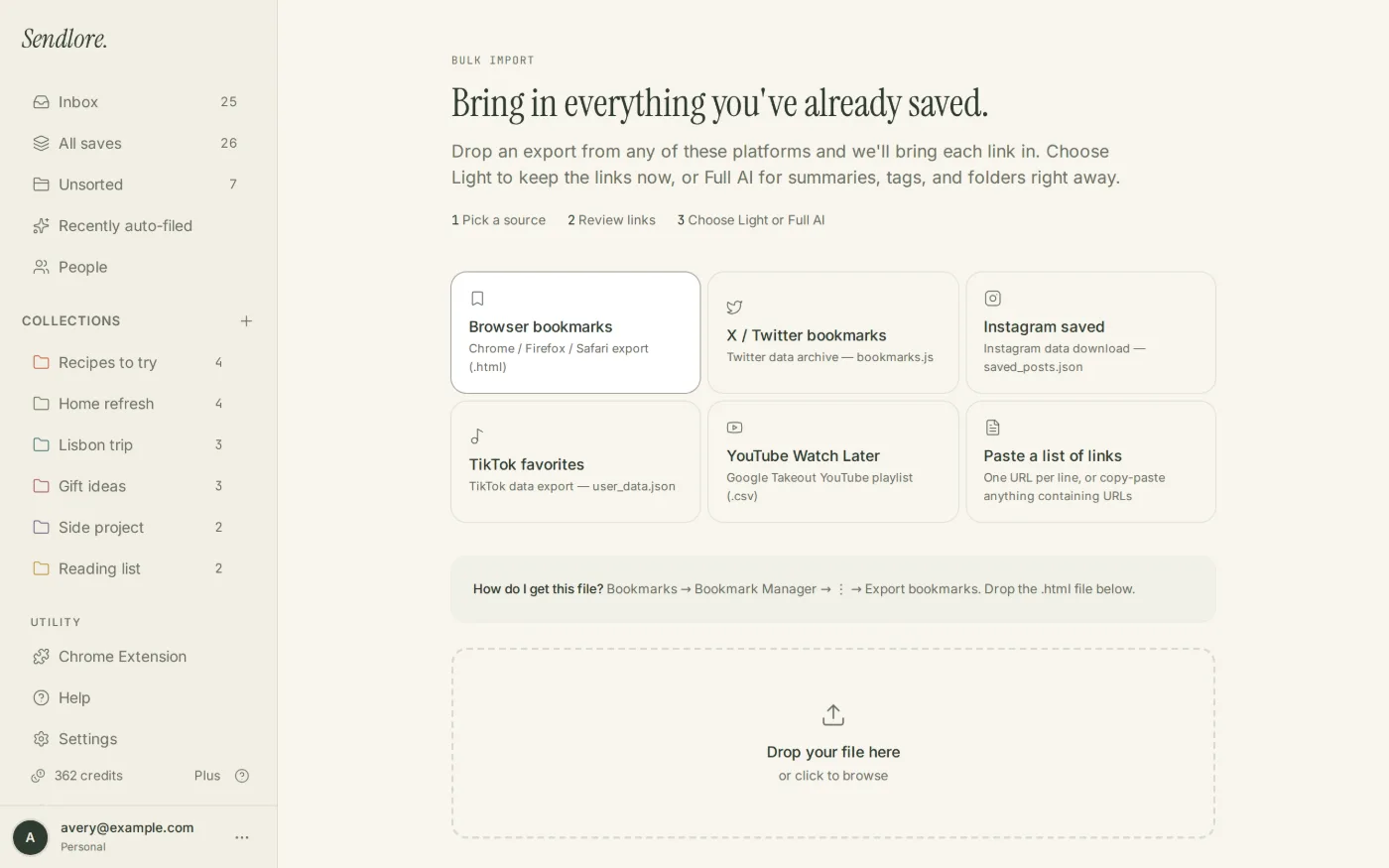
Choose TikTok
Open Sendlore Import and select TikTok favorites as the source.
Upload user_data.json
Select the JSON file from the extracted TikTok data download.
Review detected video links
Check the URLs parsed from Favorite Videos and inspect likely duplicate warnings.
Choose Light or Full AI
Bring the backlog in lightly, or use richer processing when the source and your credit balance justify it.
Light import vs. Full AI
Moving the favorite is separate from fully understanding the video.
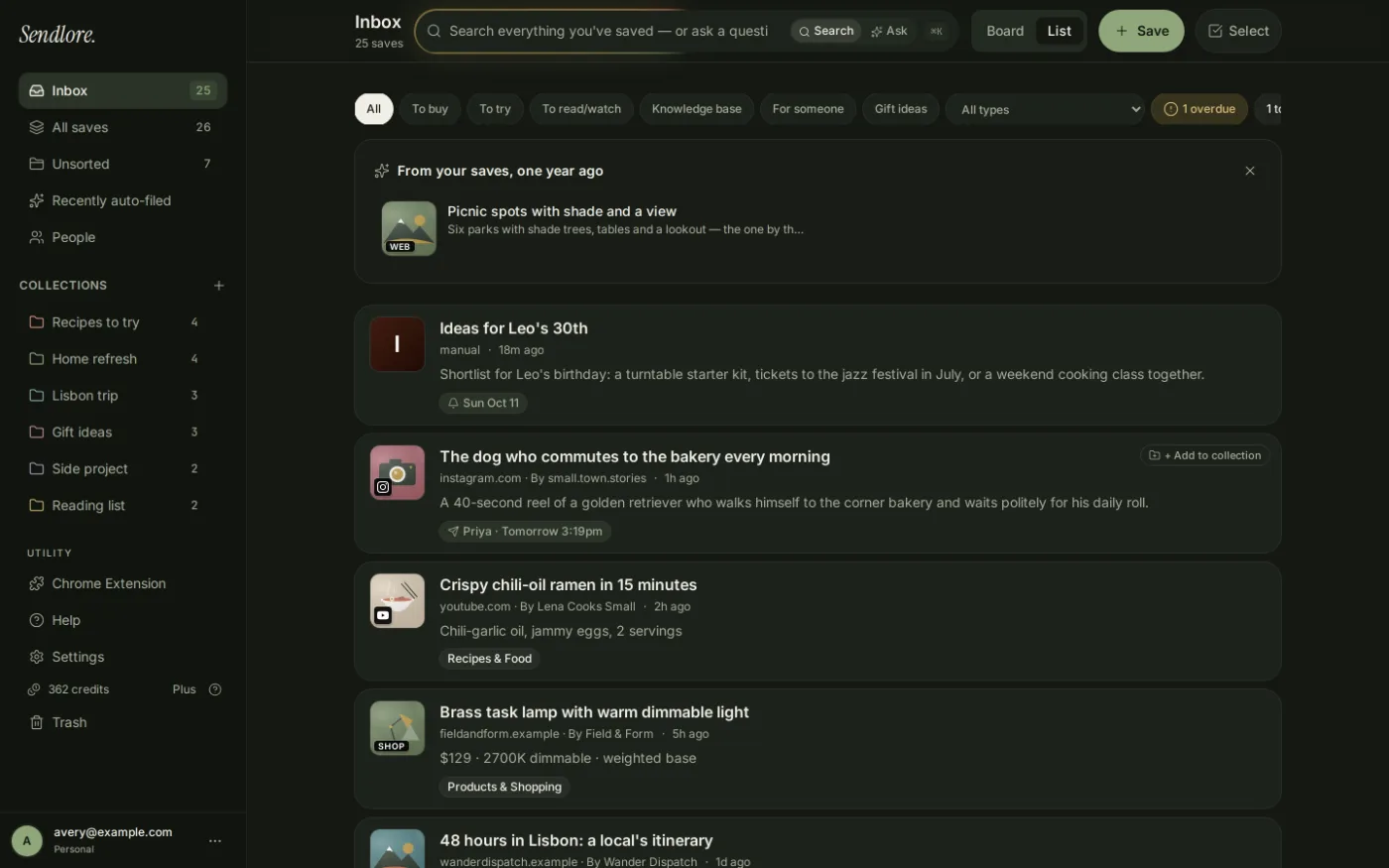
A TikTok favorites list can be large, and many videos may only be useful as references. Sendlore lets you preserve the links first instead of spending deeper-processing credits on every favorite immediately.
Some TikTok sources can remain partial or metadata-only. Importing the favorite URL does not bypass login requirements, deleted-video status, account restrictions, platform blocking, or other limitations on source extraction.
After the import
Reconnect saved TikToks with the reason you wanted them.
Favorites are often useful for more than entertainment: recipes, products, places, creators, design examples, tutorials, marketing ideas, exercises, or research leads. Moving them into Sendlore gives those references a place beside related sources.
Privacy and export scope
Your TikTok data download can contain more than favorite-video links.
user_data.json. Do not upload unrelated data files merely because they arrived in the same export.Questions
Import TikTok favorites FAQ
What TikTok file does Sendlore need?
The current Sendlore importer expects user_data.json from TikTok’s JSON data export and looks inside it for the Favorite Videos section.
Should I request JSON or another format?
Choose JSON for this Sendlore migration. The current importer is built to parse TikTok’s structured JSON data.
Where do I request my TikTok data?
TikTok maintains a Requesting your data / Download your data flow in its account and privacy settings. Interface labels can vary by version and region, so follow TikTok’s current Help Center if the exact menu wording differs.
Should I upload the TikTok ZIP file directly?
No. Extract the downloaded archive first and upload user_data.json to Sendlore.
Will Sendlore import every favorite exactly as TikTok displays it?
The importer’s job is to recover the favorite-video links available in the export. It does not promise a perfect clone of TikTok’s Favorites interface, categories, thumbnails, captions, comments, or media.
Will every imported TikTok video get a transcript?
No. Source extraction varies. Some TikTok saves can remain partial or metadata-only depending on what Sendlore can successfully access.
What happens if a TikTok URL already exists in Sendlore?
The current import review checks normalized URLs and can flag likely duplicates before you create the saves.
Does importing TikTok favorites use credits?
Light import avoids full-processing credits for every URL. Full AI can use credits when Sendlore attempts richer processing of the imported destinations.
Can I search imported TikTok favorites with the rest of my library?
Yes. Imported items enter the normal Sendlore library and can participate in search based on the information stored for them.
Move the useful favorites out of the feed
Keep the TikToks you saved for a reason in the same library as the rest of your research.
Request the JSON export, upload the supported file, review the detected Favorite Videos, and make the useful references retrievable outside TikTok.