
Chrome bookmark import
Import Chrome bookmarks into Sendlore.
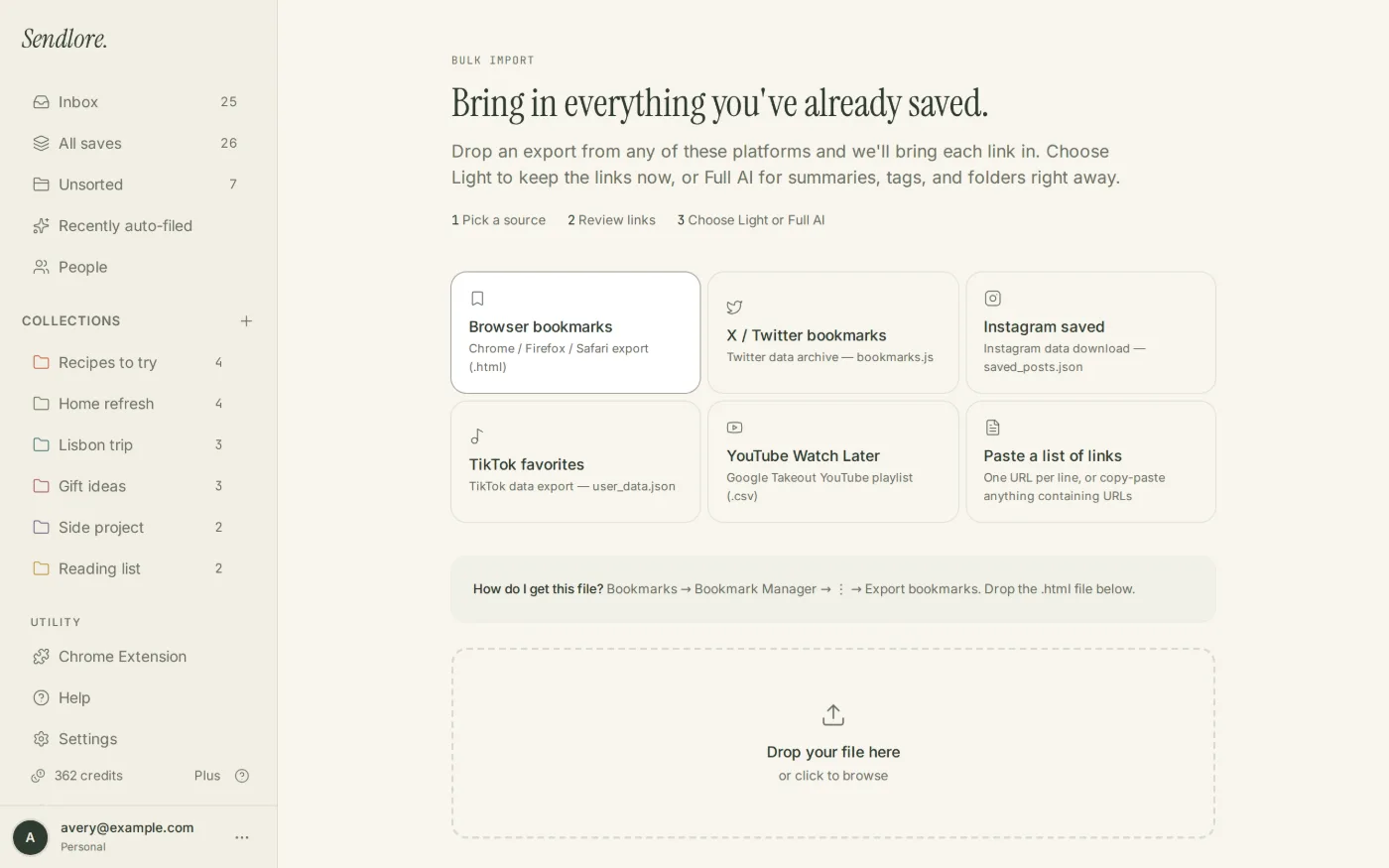
Export your Chrome bookmarks as an HTML file, upload that file to Sendlore, review duplicates, and bring the links into one searchable library. You can move the backlog first, then spend deeper processing only on the bookmarks still worth keeping.
Sendlore expects Chrome’s standard bookmark HTML export. Do not upload your whole Chrome/Google data archive when the goal is bookmark migration.
Step 1
Export your bookmarks from Chrome.
Google’s current desktop instructions use Bookmark Manager. Chrome then saves the bookmark collection as an HTML file that can be moved into another service.
Open Chrome on a computer
Use the Chrome profile that contains the bookmarks you actually want to migrate.
Open Bookmark Manager
Open Chrome’s menu, choose Bookmarks and lists, then open Bookmark Manager.
Choose Export Bookmarks
In Bookmark Manager, open its More menu and choose Export Bookmarks.
Save the HTML file
Choose a location you can find again. Chrome exports the bookmarks as an HTML file.
Google’s current official instructions are available in Chrome Help.
Step 2
Upload the bookmark HTML to Sendlore.
Once Chrome creates the file, the rest of the migration happens inside Sendlore.
Upload Chrome’s exported .html bookmark file. A Google Takeout archive or password export is a different data product and is not the file this Sendlore importer expects.
Light import vs. Full AI
You do not have to deeply process every old bookmark on day one.
A large Chrome bookmark library often contains years of links with uneven value. Sendlore separates moving the URL into your library from spending credits to read the destination more deeply.
The current import flow can fall later items back to Light saves rather than dropping them from the migration. You can process the items worth keeping more deeply later.
After migration
Stop depending on the old bookmark folder tree.
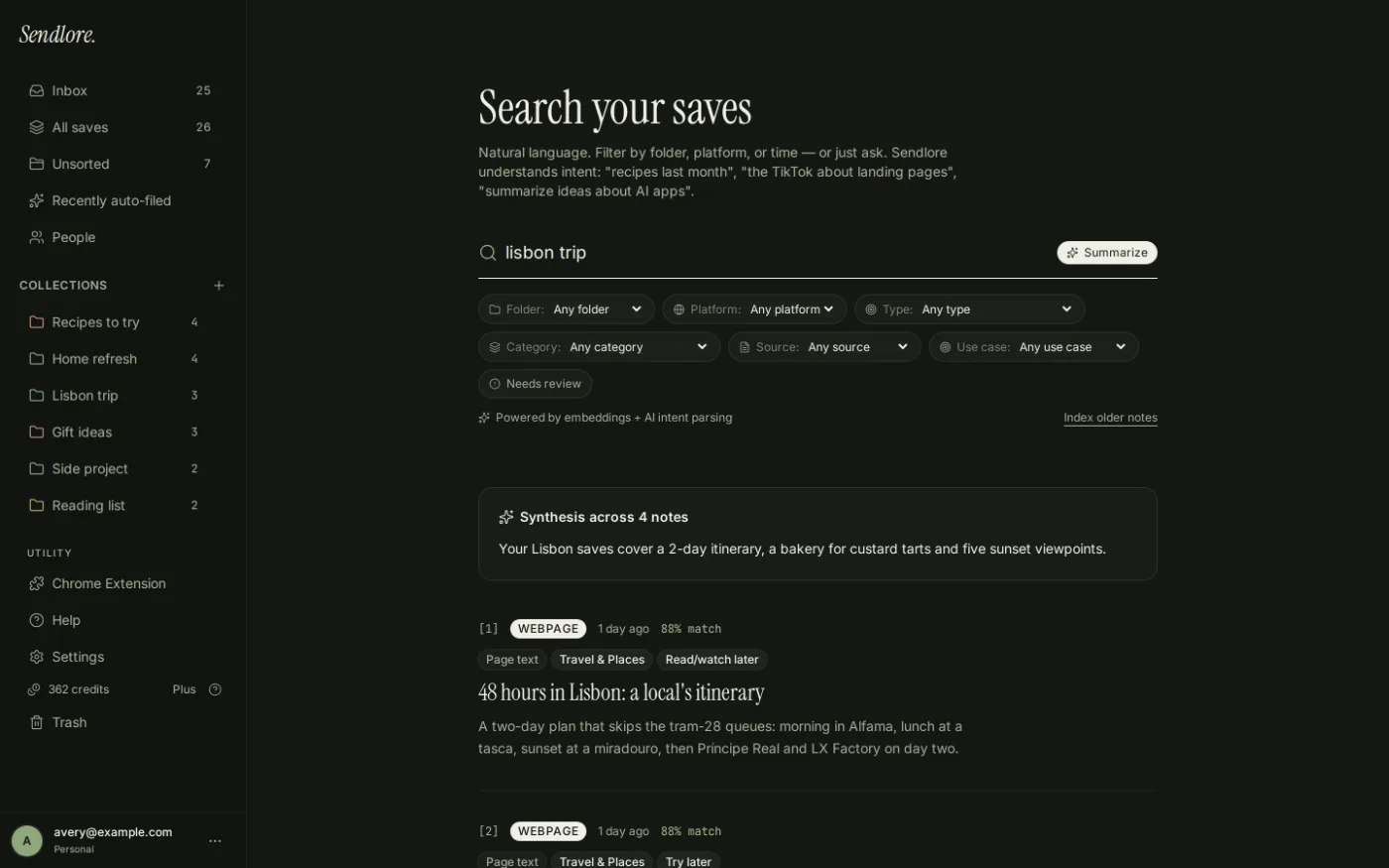
The purpose of the move is not to recreate Chrome exactly. Imported links become normal Sendlore saves that can be reorganized and retrieved with the rest of your library.
What the Chrome export contains
A bookmark export is intentionally narrower than your whole browser profile.
Before you import everything
A few cleanup decisions can make the migration better.
Questions
Import Chrome bookmarks FAQ
What file do I need from Chrome?
Use Chrome’s standard bookmark export from Bookmark Manager. Chrome saves the bookmarks as an HTML file, which is the format Sendlore’s Browser bookmarks import expects.
Where is Export Bookmarks in Chrome?
On a computer, open Chrome, choose More → Bookmarks and lists → Bookmark Manager, then open the Bookmark Manager’s More menu and choose Export Bookmarks. Google’s current Chrome Help documents this path.
Can I import Chrome bookmarks from my phone?
The standard bookmark export workflow is a desktop Chrome workflow. If your bookmarks are synchronized to the same Chrome profile, export them from Chrome on a computer and upload the resulting HTML file to Sendlore.
Will Sendlore preserve my Chrome folder structure exactly?
Do not rely on the migration to recreate Chrome as an identical folder tree. The important migration unit is the saved URL. Once imported, you can reorganize items with Sendlore folders, types, and tags.
What happens if a bookmark is already in Sendlore?
The current Import flow checks normalized URLs and can mark likely duplicates during review. You can skip an existing item or deliberately keep another copy.
Will every bookmark get a summary?
No. Light imports do not promise full enrichment, and even richer processing depends on what the destination site exposes. Some saves may remain metadata-only or partial.
Does importing Chrome bookmarks use credits?
Light import avoids spending full-processing credits on every URL. Full AI can use one or more credits per item depending on the source and the processing required.
Can Sendlore search imported Chrome bookmarks by meaning?
Yes when enough searchable information exists on the saves. Sendlore combines exact/full-text and semantic retrieval across the information stored in your library rather than relying only on the bookmark title.
Should I delete my Chrome bookmarks after importing?
There is no need to delete them immediately. Verify that the links you care about are present in Sendlore and that the migration fits your workflow before removing your old bookmark collection.
Move the backlog once
Turn an old Chrome bookmark file into a library you can actually retrieve from.
Export the HTML, review the detected URLs, bring the links into Sendlore, and use search and richer processing on the bookmarks that still matter.