
Install the Sendlore Chrome Extension
Capture pages, links, and highlighted text from supported websites in one click. Sendlore’s Chrome extension sends your saves to your personal, searchable library. Available now — early release on the Chrome Web Store.
Available now — early release
Save from Chrome without breaking your flow
Install the Sendlore Chrome extension to save the current page, links, and selected text from supported websites. Extraction and capture results vary by source.
How the Sendlore Chrome Extension Works
Setup process
Start saving in four steps
Install the extension, connect it to your account, capture useful information, and continue working with it inside Sendlore.
- 01
Install the extension
Add Sendlore from the Chrome Web Store and pin it to the browser toolbar for quick access.
- 02
Connect your account
Sign in to Sendlore, open the extension options, and connect it using the available account settings.
- 03
Save what matters
Save the current page, a linked page, or selected text. Add an optional note when context is useful.
- 04
Find it in Sendlore
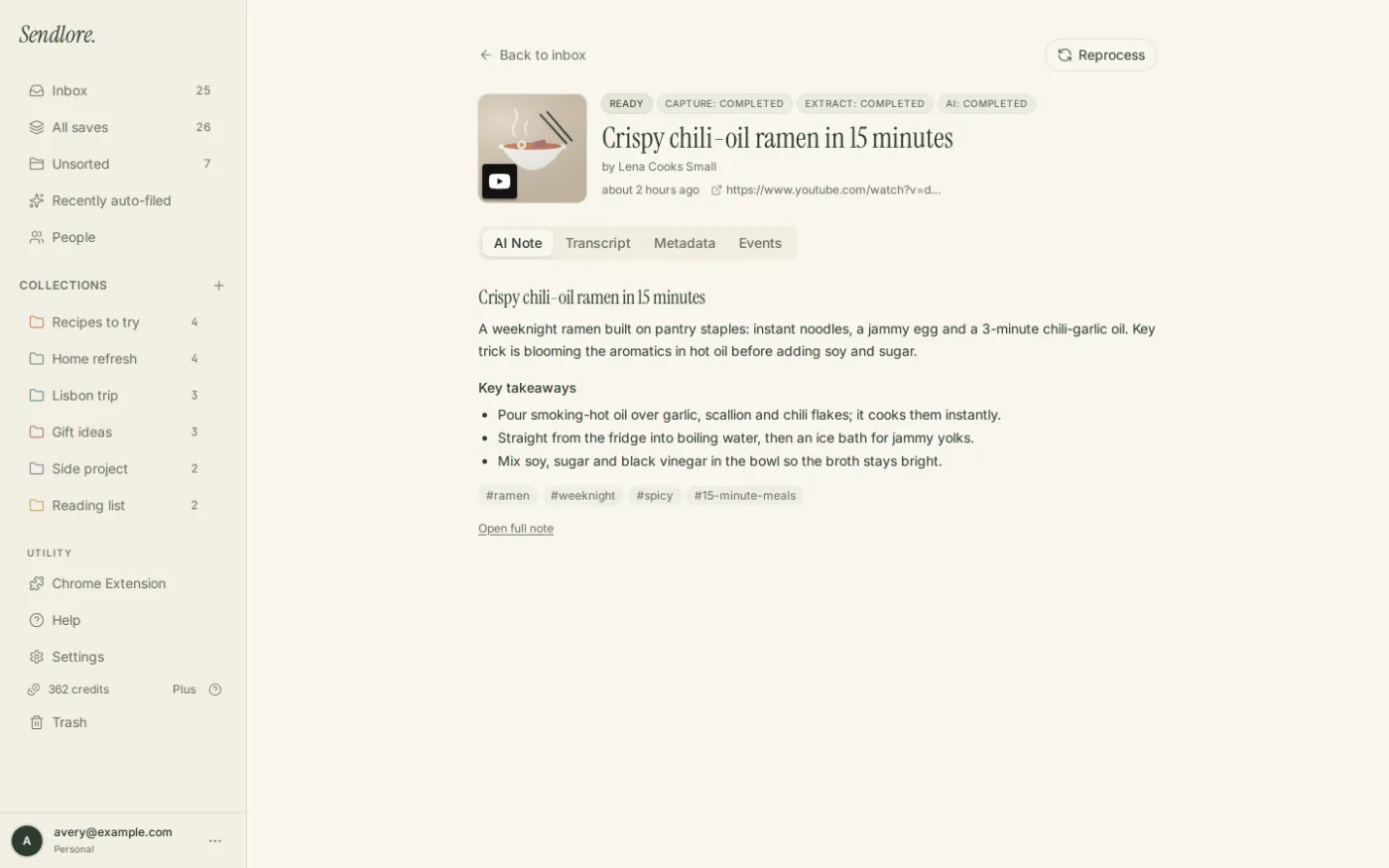
Open the web app to review, organize, search, and revisit the saved source.
OverviewThe Sendlore Chrome extension lets you save the current page, a link, or highlighted text from supported websites to your personal knowledge base with a single click—without copying, pasting, or switching context. Your saves go directly to Sendlore, where they can be organized and searched.Getting Started1. Connect Your AccountBefore saving, connect the extension to your Sendlore account.First time?Click the Sendlore icon in your browser toolbar.Click Create a free account and sign up at sendlore.neroniche.com.Return to the extension.Already have an account?Click the Sendlore icon, then select Options.Sign in to sendlore.neroniche.com.Go to Settings → API tokens.Generate a token and copy it.Paste the token into the extension options and click Save settings.The extension needs permission to communicate with Sendlore so it can send your saves. When connected, the popup displays a green dot beside Connected.Three Ways to SaveSave the Current PageUsing the popup:Click the Sendlore icon in your browser toolbar.Optionally add a note explaining why you are saving the page.Click Save to Sendlore.Using the keyboard shortcut:Press Ctrl+Shift+S on Windows or Linux.Press Cmd+Shift+S on Mac.The current page saves in the background without opening the popup.Save a LinkRight-click a link and select Save page to Sendlore. This saves the linked destination without requiring you to open it first.Save a SelectionHighlight text on a page, right-click, and select Save selection to Sendlore. The selected text becomes the save note, preserving context alongside the source.What Gets SavedEach save includes:The URL of the page or link.The page title detected from the browser tab.Your optional note or highlighted selection.The extension sends the information required to create the save in Sendlore. Do not enter passwords, login credentials, or other sensitive information in your notes.Real-Time FeedbackConnection StatusGreen dot + “Connected · sendlore.neroniche.com” — the extension is ready to save.Red dot + “Not connected — open Options” — configure an API token before saving.Save Confirmation“Saved: [Page Title]” — the item was saved successfully. Select View note ↗ to open it.“Not authorized — check your API token in options.” — the token is invalid or expired.“Rate limited — wait a minute and try again.” — wait briefly before saving again.“Save failed (HTTP 500)” — retry after a short delay.“Save timed out. Check your connection and try again.” — check your connection and retry.The extension icon may also display an OK or ! badge briefly after a save attempt.After You SaveView Your Saved NotesClick Open Sendlore ↗ at the bottom of the popup to open your knowledge base. Your new save will be available for organization and search.Edit and OrganizeIn Sendlore, you can add tags and descriptions, move captures into folders or collections, and search by keyword.Keyboard ShortcutsThe default shortcut is Ctrl+Shift+S on Windows or Linux and Cmd+Shift+S on Mac.To change it, open the extension’s Options, locate the keyboard-shortcut settings in your browser, and edit the Save the current tab to Sendlore command.Troubleshooting“Not connected — open Options”Open Options and paste a token generated from sendlore.neroniche.com/settings.“Save failed” after many savesWait about a minute, then try again.The extension icon does not appearConfirm that the extension is installed from the Chrome Web Store. Open Chrome’s extensions menu and pin Sendlore to the toolbar.The keyboard shortcut does not workThe shortcut may conflict with another extension or application. Set a different shortcut in the browser’s extension settings and confirm that your account is connected.“Permission denied”Check the configured Sendlore server URL and API token. Regenerate the token if necessary.Privacy and SecurityThe extension is designed to send the URL, title, and optional note or highlighted selection needed to create your save. Communication with Sendlore uses HTTPS. Review the Sendlore Privacy Policy for current data-handling details.Tips for Effective SavingAdd context. Include a short note explaining why the item matters.Save first, organize later. Capture the item before deciding on the perfect folder or tag.Use right-click saving for links. Save useful destinations without opening them.Organize recent saves regularly. Add tags and group related items when convenient.Use selections for long pages. Highlight the key passage before saving to preserve the reason it stood out.Need Help?Open sendlore.neroniche.com to manage your account.Manage API tokens at sendlore.neroniche.com/settings.Close and reopen the extension if the popup becomes unresponsive.
Start saving from Chrome
Install the Sendlore Chrome extension to capture supported pages, links, and selected text, then open the web app to manage your library.