To sync bookmarks across devices, sign in to the same browser account on every device and switch bookmark sync on. Chrome uses a Google Account, Firefox a Mozilla account, Safari iCloud and Edge a Microsoft account. That moves your bookmarks. It does not make them findable. If you save sources for classes, research, client work or content, a synced pile of 800 titles is still a pile. Below are the exact steps for each browser, a short fix list for sync that stalls, and a way to keep what you save searchable by the reason you saved it. We built Sendlore for that second part.
TL;DR
- Browser sync is account-based: same account, bookmarks toggle on, on every device. Signing in alone does not always turn bookmark syncing on.
- Chrome, Firefox, Safari and Edge each sync natively, but only inside their own browser (Safari only on Apple devices, plus Windows through iCloud for Windows).
- If you do not want an account, export bookmarks to an HTML file and import it on the other machine.
- Sync copies titles and URLs. It does not remember why you saved a page, so retrieval gets harder as the list grows.
- Sendlore keeps the link, the captured material and your reason for saving together, so you can search by what you remember.
How browser bookmark sync works
Every major browser does the same thing. Your bookmarks are stored under an account on the vendor’s servers. Each device that signs in to that account downloads the list and uploads its changes. Add a bookmark on your laptop and it appears on your phone after a short delay, as long as both are signed in and bookmarks are included in what you sync.
Two consequences follow:
- Sync is per browser. Chrome bookmarks do not appear in Safari. If you read on an iPhone in Safari and work on a Windows PC in Chrome, you have two libraries unless you move one across.
- Signing in is separate from syncing. Chrome on iOS now saves bookmarks, reading lists and passwords to your Google Account once you sign in, with tab and history sync as a separate opt-in. Without signing in, saved items stay only on that device.
Pick the browser you use on the most devices, sync that one, and treat the rest as secondary.
Sync Chrome bookmarks between a computer and a phone
Google states that Chrome bookmarks are saved in your Chrome account, so they are available on any phone, tablet or computer where you are signed in. The steps below follow Android Authority’s walkthrough.
On a computer
- Open Chrome and click the three-dot menu, then Settings.
- Choose You and Google, then Sync and Google services.
- Click Manage what you sync and choose Customize sync.
- Switch the Bookmarks toggle on.
On Android
- Tap the three-dot menu, then Settings.
- Tap Turn on Sync and pick your Google account.
- Press “Yes, I’m in,” then make sure Bookmarks is selected.
On iPhone or iPad
- Tap the menu, then Settings, then Sync.
- Turn on Sync Everything, or only the Bookmarks toggle.
- Tap Done.
Use the same Google account on every device. A second account is the most common reason a phone shows an empty bookmark list.
How-To Geek describes the same logic for moving a browser setup between machines: sign in and turn on sync on the first device, then do the same on the second. You can switch individual data types off under Manage what you sync.
Sync Firefox bookmarks
Firefox syncs through a Mozilla account. A BrowserHow guide lays out the sequence:
- On the computer that holds your bookmarks, sign in to Firefox with a Mozilla account.
- Open the Sync settings, turn Bookmarks on and click Sync now.
- On every other device, sign in to the same account and confirm Bookmarks is on.
Signing in alone does not push anything until bookmark syncing is switched on. An unverified email address on the Mozilla account can also hold everything back, so confirm the verification message first.
Sync Safari bookmarks with iCloud
With Safari turned on in iCloud, Apple says bookmarks, Reading List, history, open tabs, Tab Groups and profiles stay up to date on iPhone, iPad and Mac. Bookmarks also sync to Windows devices through iCloud for Windows.
On a Mac, sign in with your Apple ID in System Settings, enable iCloud and toggle Safari on. Cornell IT describes the same path, and cautions against signing in to iCloud on institution-managed computers because personal data syncs by default. If you use a university or employer laptop, keep that in mind before you turn it on.
One privacy detail for Apple users: Privacy Guides notes that Safari history, tab groups and saved passwords sync end-to-end encrypted, but bookmarks are not end-to-end encrypted by default. Apple can decrypt them unless you enable Advanced Data Protection in your iCloud settings. That matters if your bookmarks include sensitive research or client material.
Edge, Brave, Opera and Vivaldi
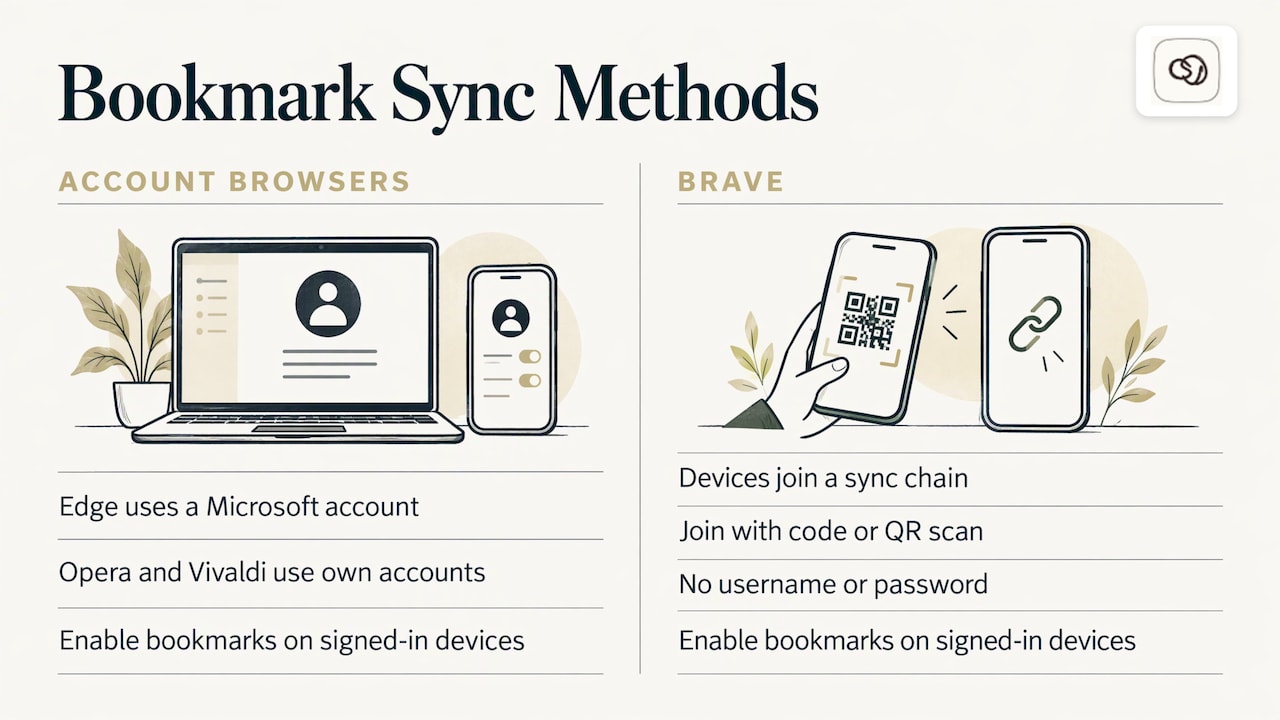
Edge syncs favorites through a Microsoft account. Opera and Vivaldi use their own accounts. Brave works differently: devices join a sync chain with a code or QR scan rather than a username and password. In each case the pattern is the same as above: one identity, the bookmarks toggle on, every device signed in.
Sync bookmarks without a cloud account
If you would rather not create an account, or you are moving between two different browsers, use an HTML export. Marquette University’s IT service documents the process:
- Chrome: open the Bookmark Manager and choose Export Bookmarks.
- Firefox: Bookmarks, Show All Bookmarks, Import and Backup, Export Bookmarks to HTML.
- Move the HTML file by USB drive, email or another method, then import it on the other machine.
A university IT page also describes saving the exported Firefox file to OneDrive so it is available on any device.
Export is a snapshot, not live sync. Changes you make afterward do not travel, so it suits a one-time move or a backup before a big cleanup, not daily work.
When bookmarks stop syncing
Most failures come from a short list of causes. Work through them in order:
- Check the account. Confirm every device shows the same email address in the browser profile.
- Check the toggle. Bookmarks must be switched on in the sync settings of each device, not only the first one.
- Look for a paused or error message. After a password change or new two-factor setup, browsers often ask you to sign in again before sync resumes.
- Update the browser. An old version on one device can lag or fail to sync with newer ones.
- Wait and refresh. Sync is not instant. Close and reopen the browser on the receiving device, or use the sync-now option where your browser offers one.
- Sign out and back in. This often clears a stuck session. Export your bookmarks to HTML first, so you have a copy.
On a work or school device, an administrator may have disabled sync. In that case, ask your IT department rather than trying workarounds.
Check that your bookmarks really arrived
After you turn sync on, spend two minutes verifying it:
- Add a test bookmark on device A with a recognizable name.
- Open the bookmark manager on device B and look for it.
- Delete the test bookmark and confirm it disappears on both.
- Compare the folder structure. Missing folders usually mean sync is still running or that bookmarks were saved to a different profile.
If you keep several browser profiles, such as personal and work, check which profile each device is signed in to.
The problem sync does not solve
Sync answers one question: is my list on this device? It does not answer the question you actually ask later, which is usually something like: where was that paper with the survey data, or which video explained the method my professor mentioned?
A bookmark stores a title and an address. The title is often the page’s own marketing headline. The reason you saved it, the sentence you meant to quote and the project it belonged to are all gone. Folders help until they multiply, and then you are searching your own filing system.
This hits some readers harder than others:
- Students save readings for several courses and need them back at exam time.
- Researchers need a source plus the evidence they took from it.
- Professionals collect reference material that someone asks about months later.
- Content creators save ideas and references that only make sense with the note that went with them.
A few habits make a synced library far easier to use, even before you change tools:
- Write the reason down when you save. A one-line note such as “method for sampling, chapter 3” beats any title.
- Use a small number of folders. Three to six top-level folders by project or course hold up better than dozens of topics.
- Review weekly. Clear anything you saved but never needed.
- Keep one primary place. If bookmarks live in three browsers, search in three places.
Keep the context with the link: Sendlore
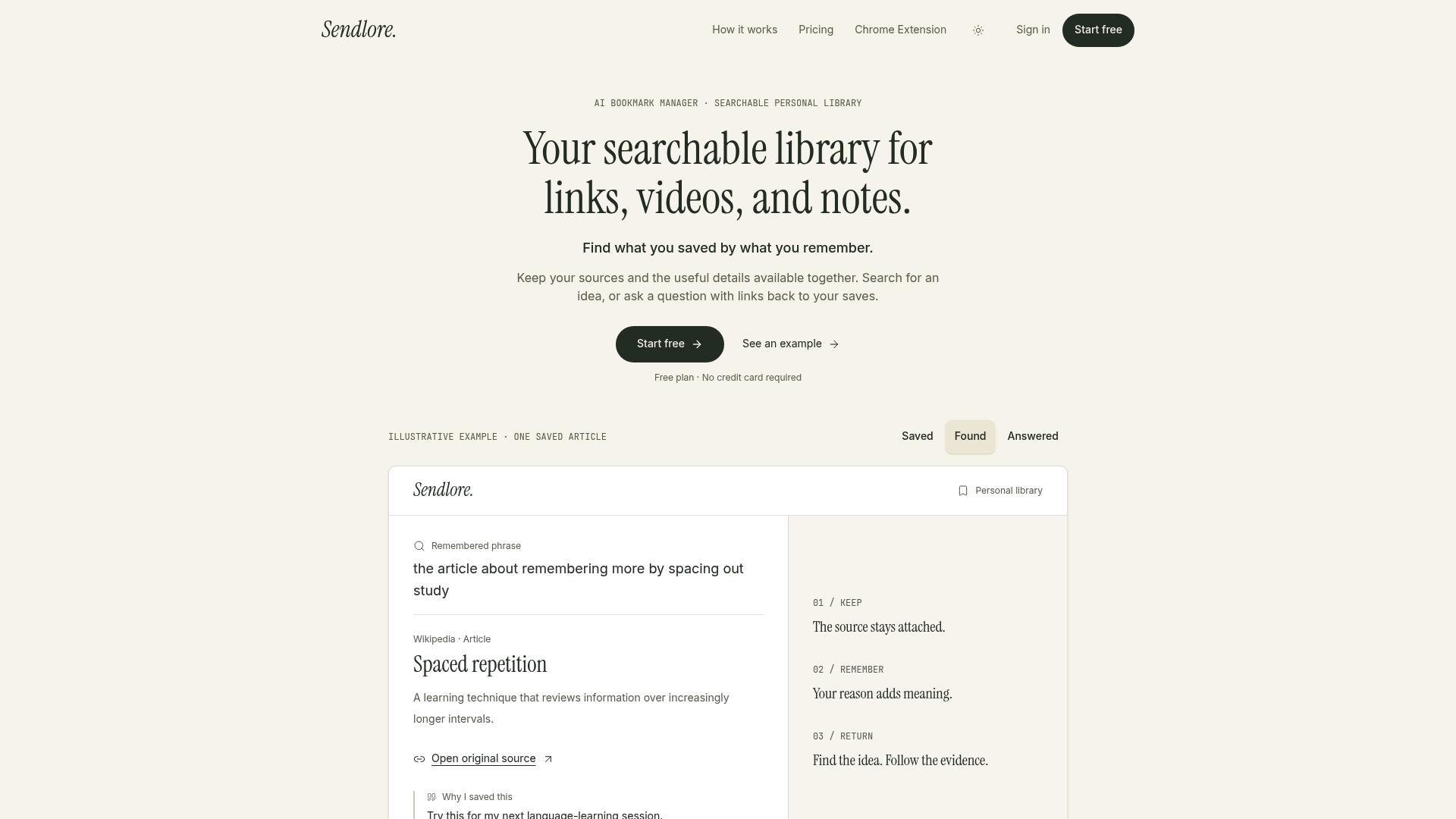
Sendlore is an AI bookmark manager built around that gap. You save links, videos, notes and files together with the source details and your own context, the reason you saved the item. Later you search with the words you remember, or ask a question across your saves and get an answer with links back to the evidence. It also suggests folders and classifications, so organizing does not depend on you doing it in the moment.
Capture works from the browser, through the Sendlore Chrome extension, and from an iPhone using a Shortcut. You can import the bookmarks you already have, and you can export notes. That means you can start from the library your browser sync has been building rather than from scratch.
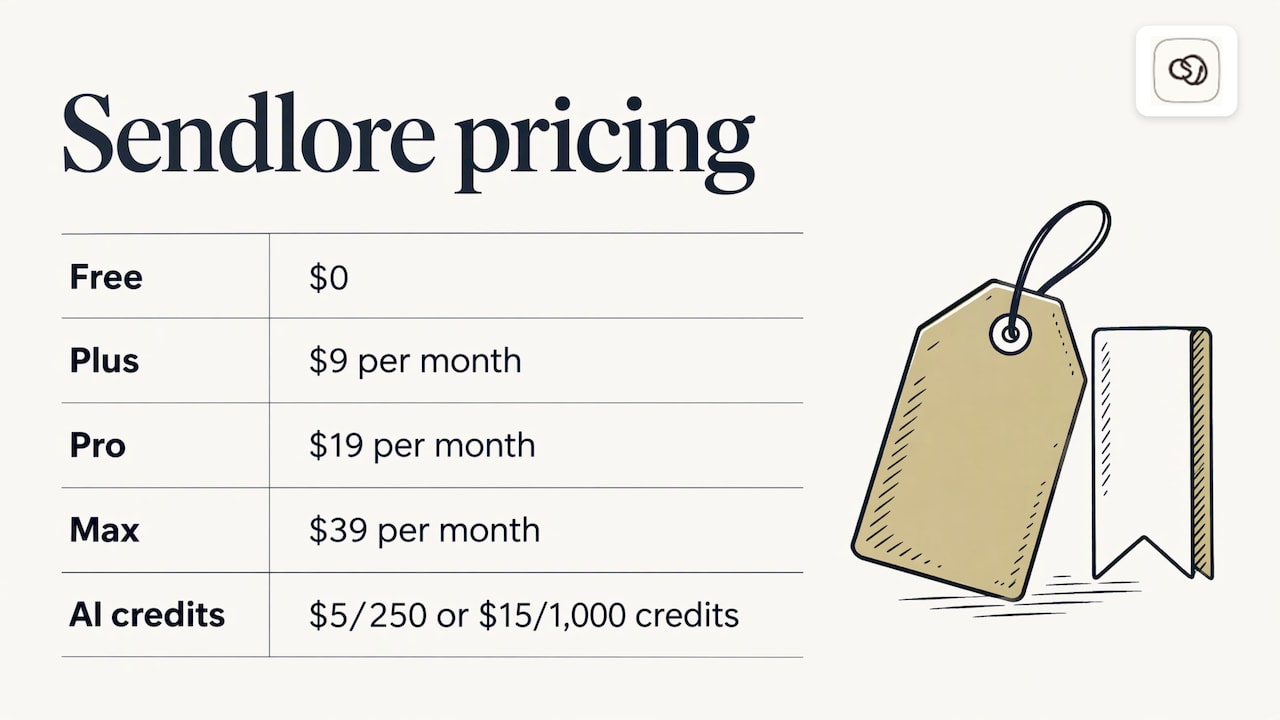
The Free plan costs $0. Paid plans are Plus at $9 per month, Pro at $19 per month and Max at $39 per month. Optional credit top-ups for AI reading are $5 for 250 credits or $15 for 1,000 credits. Details are on the Sendlore pricing page.
A practical setup is to leave browser sync on for everyday convenience, and send the material you will need to retrieve later, such as sources, references and ideas, to Sendlore with a note on why it matters. You can read more on the Sendlore home page.
A simple routine that works across devices
- Pick one main browser and sync it on every device with the same account.
- Import your existing bookmarks into Sendlore once.
- When you save something you will need again, add the reason in a sentence.
- When you need it, search by what you remember or ask a question, then follow the source link.
- Once a month, export a backup of your notes and your browser bookmarks.
FAQ
Why are my bookmarks not syncing?
The usual causes are a different account on one device, the Bookmarks toggle being off, a paused sync that needs you to sign in again, or an outdated browser. Check those four first. If the browser shows a sync error, sign in again, and export a backup before you sign out.
Can I sync bookmarks between different browsers?
Not live, using the browsers’ built-in sync. Chrome syncs with Chrome and Safari with Safari. To move bookmarks between browsers, export them to an HTML file from one and import that file into the other. A tool that stores bookmarks outside any one browser, such as Sendlore, avoids tying your library to a single browser.
Is it safe to sync bookmarks through a cloud account?
For most people, yes, but check what is encrypted. On Apple devices, bookmarks are not end-to-end encrypted by default unless you enable Advanced Data Protection. If your bookmarks include sensitive material, use the HTML export route or tighten your account protection.
Do I need an account to sync bookmarks?
No, but you give up automatic updates. Without an account, you export an HTML file and import it on each device. Brave uses a code or QR scan to link devices instead of a username and password.
Sources
- Chromium Blog: A new way to seamlessly browse across devices
- Chrome for mobile (Google)
- How to sync Chrome bookmarks across your devices (Android Authority)
- What Is the Best Way to Sync Your Browser Between Devices? (How-To Geek)
- Firefox Bookmark Sync: Set It Up Across Devices (BrowserHow)
- Keep Safari in sync across your devices with iCloud (Apple Support)
- Tech Tip: Configure Your Browser to Back Up Bookmarks (Cornell IT)
- Privacy Respecting Web Browsers for Android and iOS (Privacy Guides)
- How to Import and Export Web Browser Bookmarks and Favorites (Marquette University ITS)
- How To Back Up Firefox Bookmarks (Tarleton State University)