
Sendlore import
Import your browser bookmarks into Sendlore
Move bookmarks from your browser into one searchable Sendlore library. Keep the original links, add context where it matters, and retrieve useful research without digging through old folders.
Free light import of up to 1,000 links. Deeper reading uses credits.
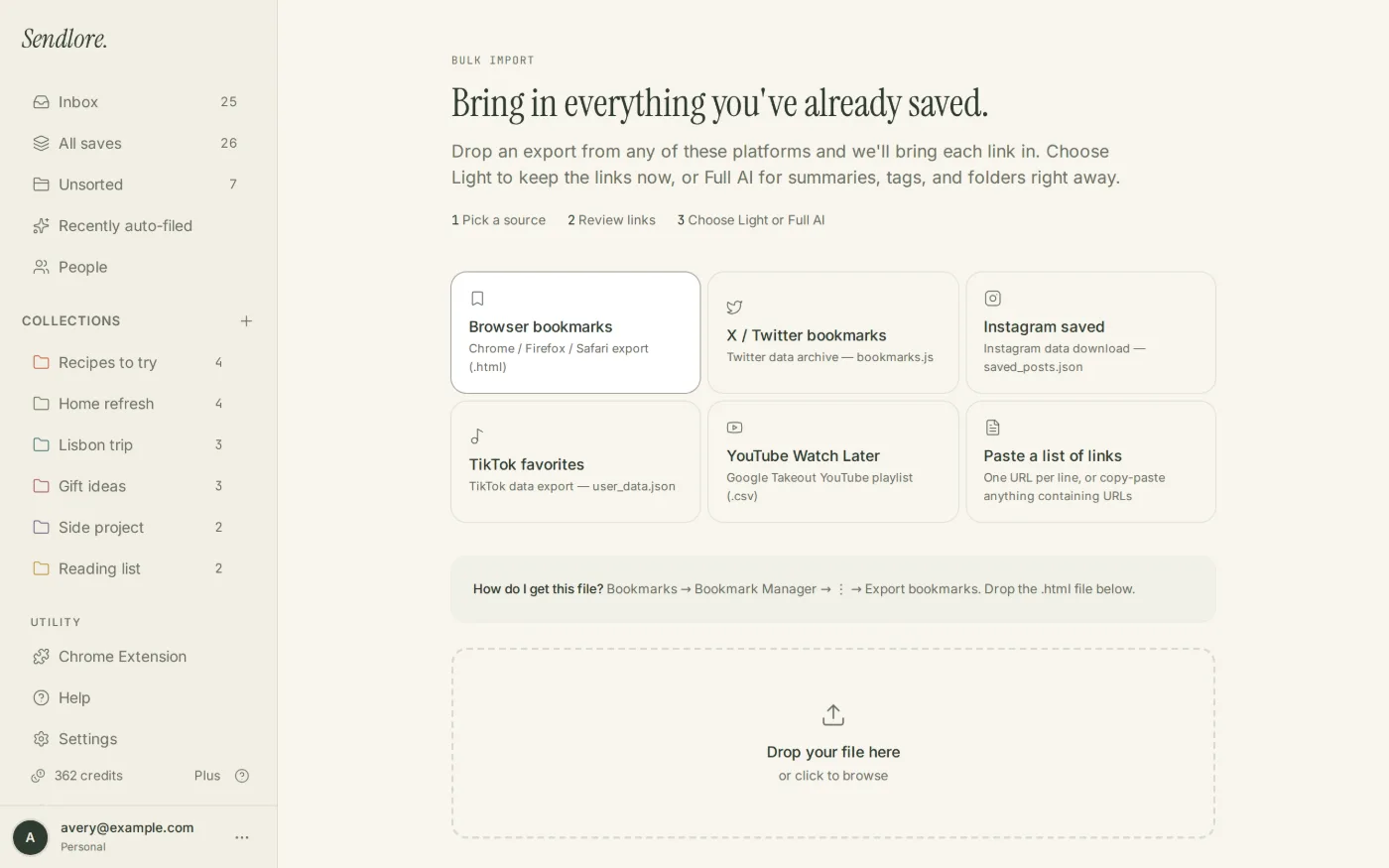
How it works
Move the library first. Clean it up after.
You do not need to rebuild old bookmark folders link by link. Export your browser’s bookmark HTML, review detected links in Sendlore, then organize and process useful items inside one library.
Export bookmark HTML
Use your browser’s bookmark manager to export bookmarks as an HTML file. The export contains saved page links, not browsing history.
Upload the bookmark file
Open Sendlore Import, choose Browser bookmarks, and upload the HTML file. For Chrome-specific instructions, follow the guide linked below.
Review duplicates and import
Review detected bookmark URLs and duplicate warnings first. Light imports keep links and basic details; the Free plan supports up to 1,000 links.
Read, organize, and search
Sendlore can process imported sources more deeply as credits allow, then you can refine collections, types, and tags and search the information that was captured.
Browser bookmark migration
Move your browser bookmarks into a working library.
A browser bookmark HTML export contains saved page links. Import those links and available details so you can review, organize, and search them later without rebuilding your old folder system.
Save bookmark HTML
Use your browser’s bookmark manager to export bookmarks. Chrome produces an .html file.
Check URLs and duplicates
Choose Browser bookmarks in Sendlore Import, upload the HTML file and review detected links.
Find valuable links again
Organize imported items and search available titles, notes and source information; deeper processing can add more detail.
See the step-by-step Chrome bookmark guide →
Importing X, Instagram, TikTok, YouTube or a list of URLs instead? Choose your source in the complete import hub →
After the import
Turn a pile of URLs into something you can actually use.
Importing is only useful if the old library becomes easier to work with. Once the items are in Sendlore, you can use the same organization and retrieval tools as the rest of your saves.
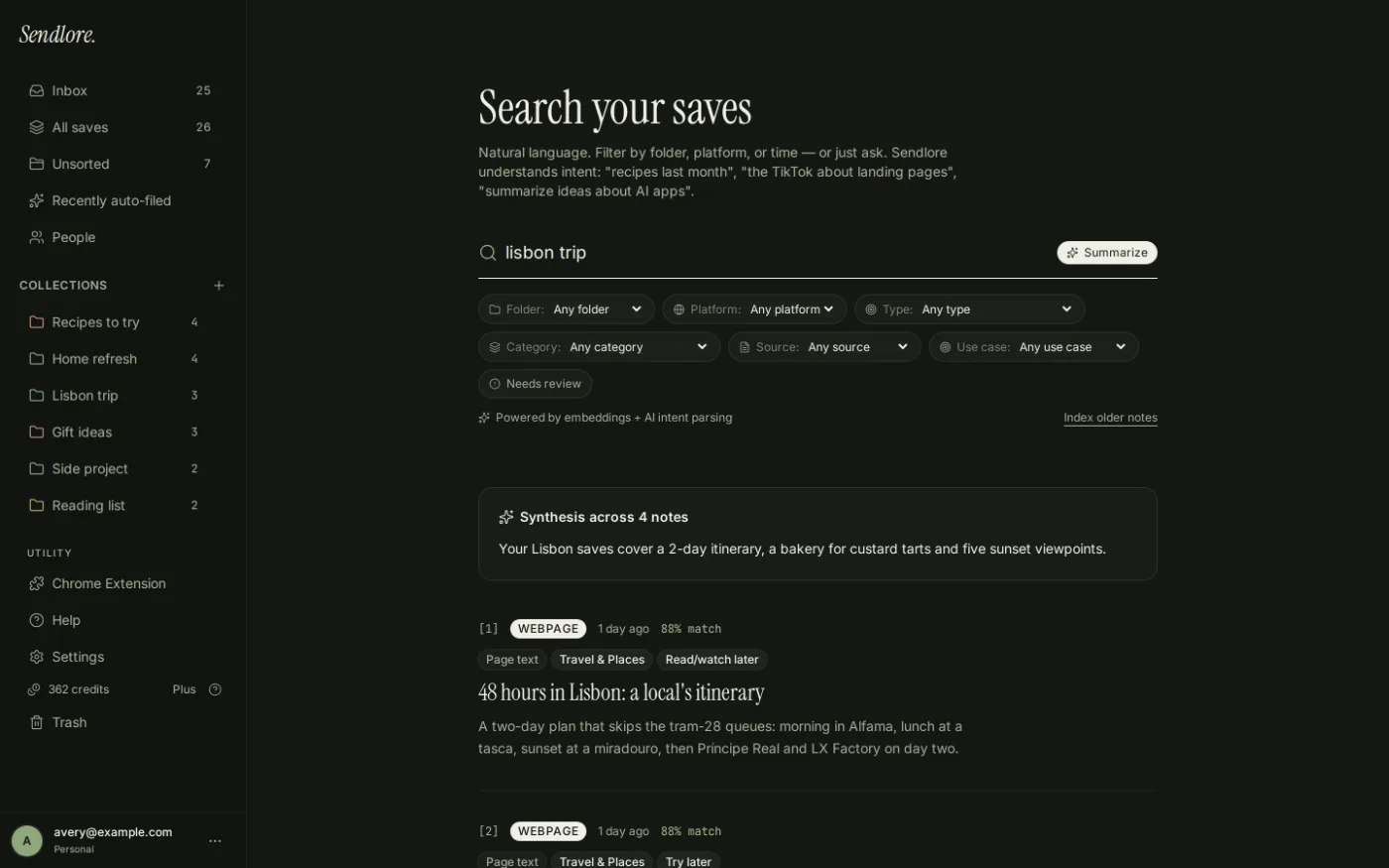
Light import vs. full reading
Importing a link is not the same as fully processing it.
That distinction matters for a large archive. Sendlore can bring links into your library quickly, then use credits when it needs to read a source more deeply.
A successful import does not guarantee the same amount of captured text for every URL. Some sources expose rich content; others may provide only limited metadata. Keeping the original link attached means the source is still available when you need to verify it.
Questions
Browser bookmark import questions
How many bookmarks can I import for free?
The Free plan includes a light import of up to 1,000 links. Deeper processing of imported sources uses credits as Sendlore reads new content.
Which file do I upload?
Export bookmarks from your browser as HTML, then choose Browser bookmarks in Sendlore Import. The Chrome guide explains the exact steps.
Will my bookmark folders be recreated exactly?
Focus first on importing useful links. Review and organize them in Sendlore after the move rather than assuming every original browser folder arrangement will be reproduced.
How are duplicate bookmarks handled?
The import preview flags normalized URL matches so you can decide how to handle them before confirming.
Can Sendlore read every bookmarked page?
No. Light imports preserve links and available details. Richer processing depends on source access and plan credits; login-protected or paywalled pages may limit capture.
Can I reorganize imported items later?
Yes. Collections, types, and tags can be changed after the items are in your library.
For broader product questions, see the Sendlore FAQ. For data handling details, review Security & Privacy.
Start with the backlog
Your old bookmarks can become useful again.
Bring the links into one library, keep their sources attached, and organize or process the items that are still worth keeping.